Documentation
Taking a part from a machine in stock
Taking a part off a machine sitting in stock to get a customer running again, then replacing it when the purchase order arrives: Dolibarr does this natively, with no development. This procedure replaces the manual stock adjustment many people fall back on, for want of knowing the feature exists.
Today you most likely move the part's stock from 0 to +1 so that you can sell it, and that adjustment is never reversed: every removal leaves a phantom unit in your stock. Repeated over a year, it accounts for a good share of the discrepancies found at inventory time.
The word to know
In Dolibarr the operation is not called "dismantling" — it is called Disassemble. That is why searching for it rarely turns it up.
It is neither on the product record nor in a bill of materials: it is a type of manufacturing order. It has been there since Dolibarr 15.
Step 1 — Create the order and choose the type
Menu MRP → Manufacturing Orders → New.
The Type field offers "Manufacturing" by default: switch it to Disassemble.
Then fill in:
- the Product — the machine you are taking a part from;
- the Quantity, set to 1;
- the Warehouse where the machine currently sits.
Leave the Bill Of Materials empty: every removal is a one-off, no BOM is needed.
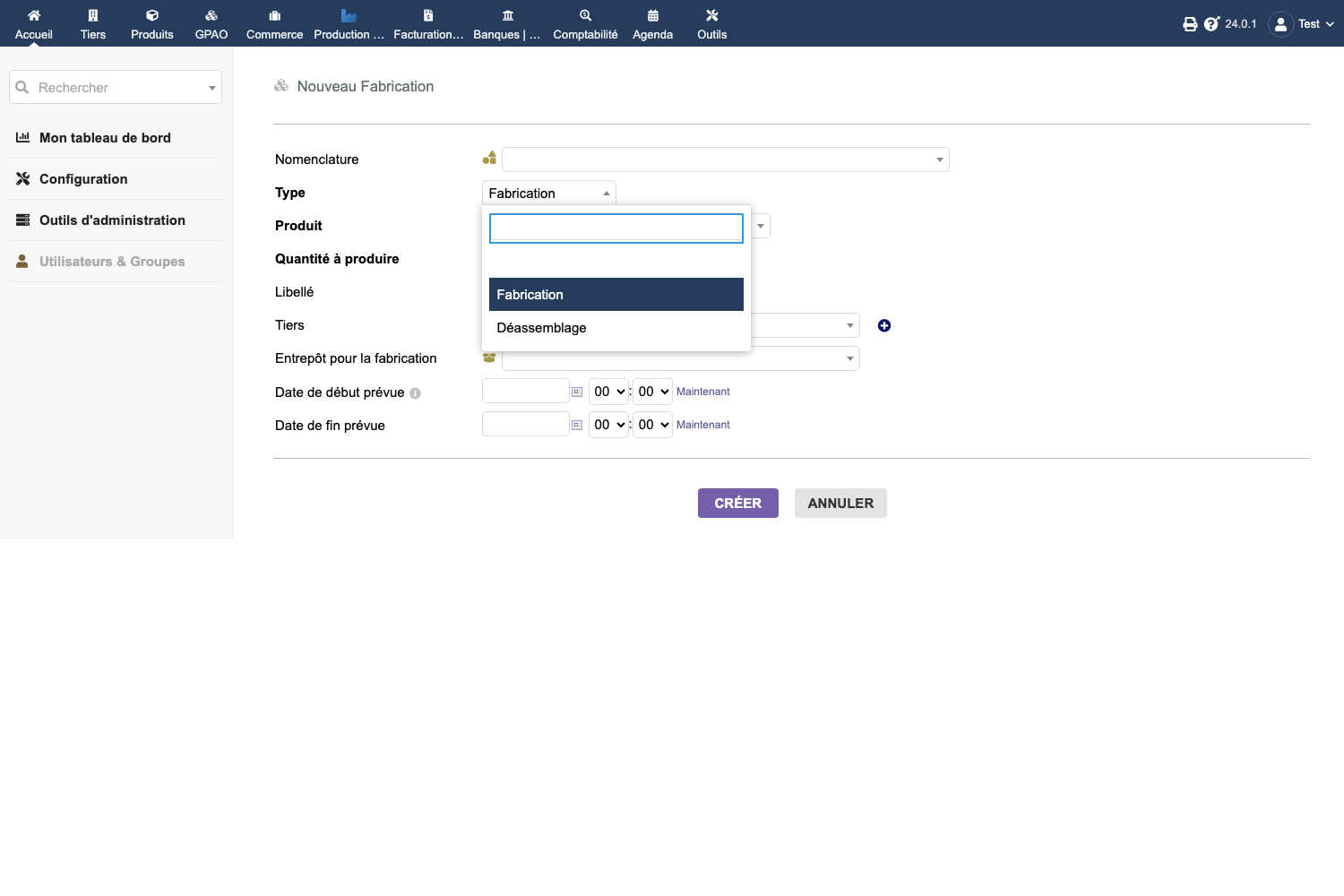 The Type list open: "Manufacturing" is the default, "Disassemble" is the one to pick.
Step 2 — Validate, then open the Production tab
Once created, validate the order. Then open the Production tab: the machine appears on its own, in the Consumption block. The Production block, on the right, is still empty.
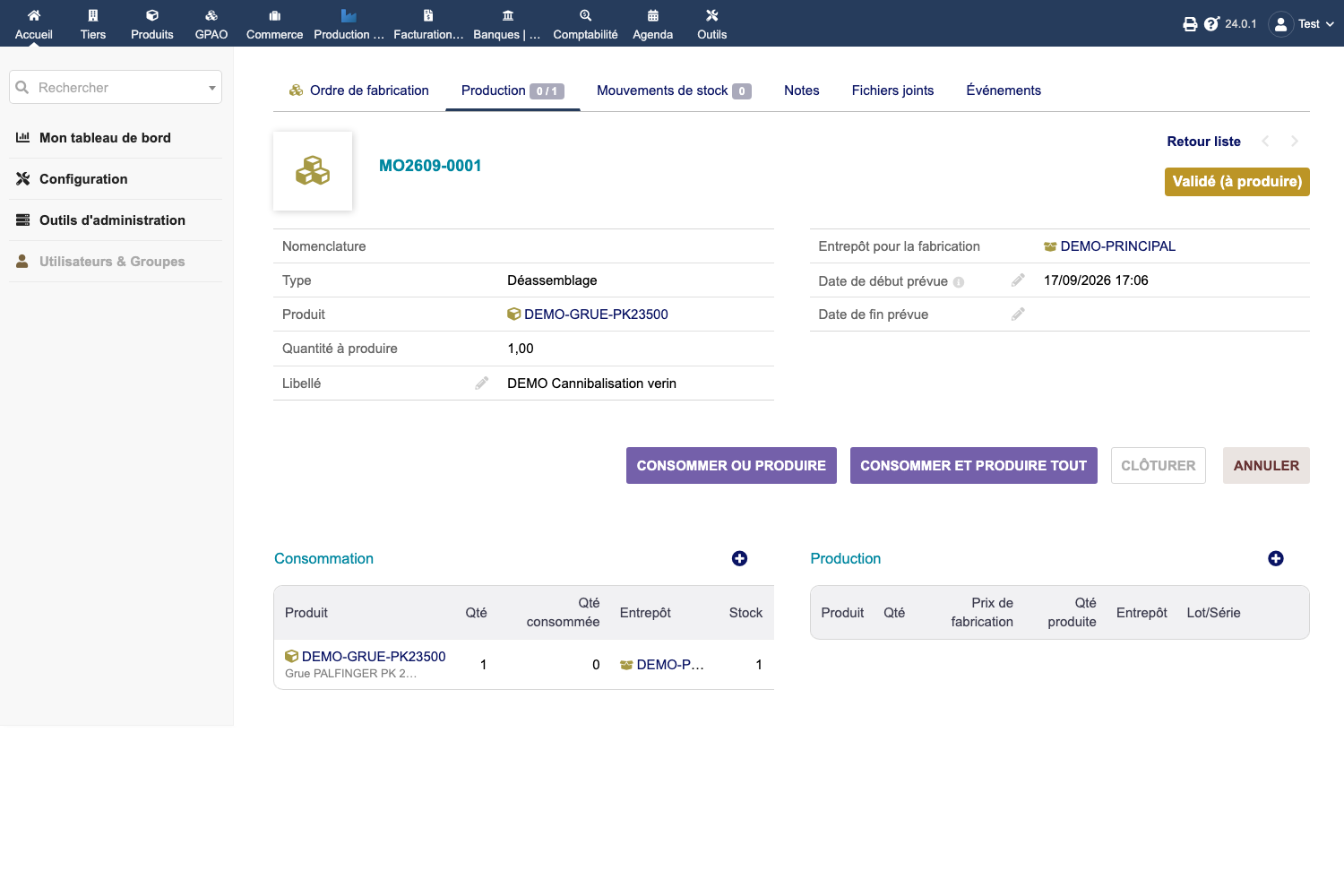 On the left the machine to be consumed, on the right the empty Production block and its + button.
Step 3 — Declare what comes out of the teardown
In the Production block, click + and add two lines:
- the part removed, with its own serial number — the one on the part you have just taken off, not the machine's;
- the machine itself, sent to a warehouse dedicated to incomplete machines.
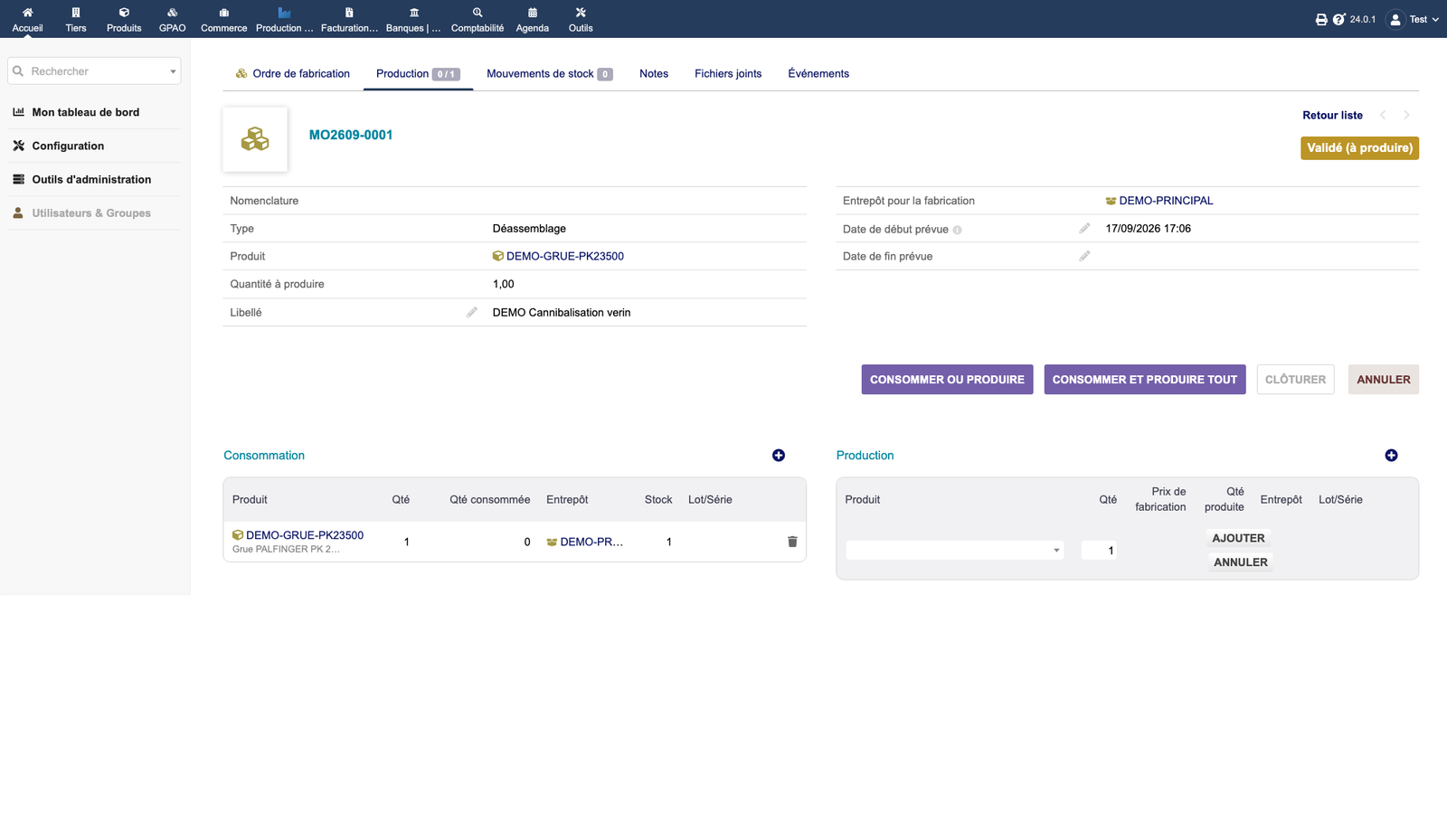 Product, quantity, manufacturing price, destination warehouse and serial number, then Add. Repeat for the second line.
Each line has a Manufacturing price field: this is the value at which the item enters stock. That point calls for a management decision, covered at the end of this procedure.
Step 4 — Execute
The Consume or Produce button does everything at once: the machine leaves its warehouse, the part enters stock with its serial number, and the machine reappears in the incomplete-machines warehouse.
From then on the part is an ordinary item with its serial number: it sells without forcing anything.
Step 5 — Link the purchase order for the replacement part
Once the part is on order with your supplier, link that purchase order to the disassembly order. Months later you will still know which order goes with which stripped machine.
The link is only offered if the manufacturing order carries a Third party. If the field is empty, fill it in first — the customer concerned, or the supplier of the part — otherwise no link button will appear at all.
On the order record, scroll down to the Linked objects box, bottom left. To its right, a "Link to…" link opens the list of possible links: choose "Link to purchase order". The number in brackets shows how many orders are available.
Tick the order in the list that appears, then click Link. It then shows up in the Linked objects box, and the manufacturing order becomes reachable from the purchase order.
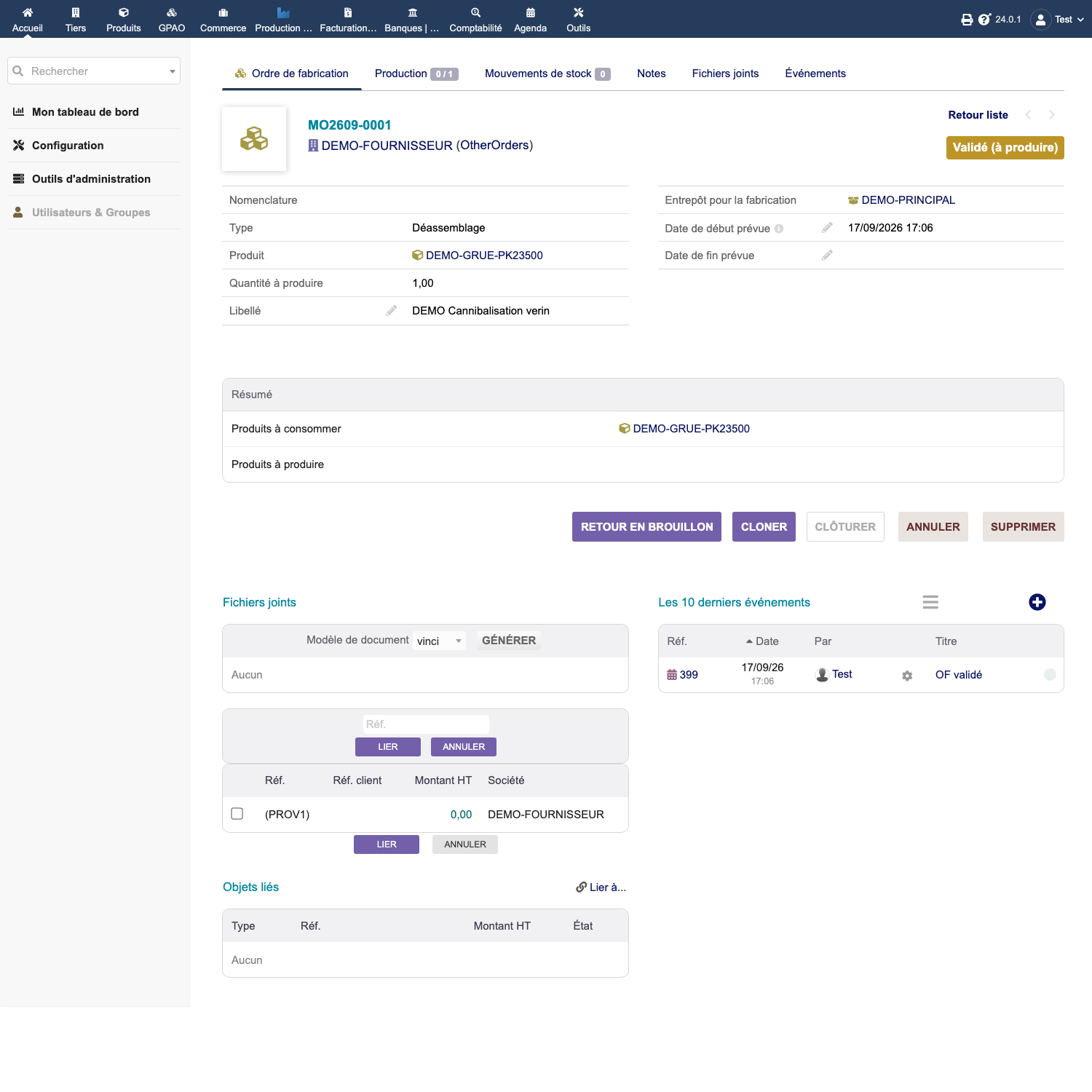 The "Link to…" link to the right of the Linked objects box, and the list unfolded: tick the order, then Link.
Unlike the other link types, the purchase-order list is not restricted to orders for the same third party. You will therefore find any of your orders there, even when the supplier of the part is not the one who sold the machine.
Step 6 — Reassembly, on delivery
When the part arrives, create an order of type Manufacturing — the mirror image of the first one. It consumes the machine from the incomplete-machines warehouse along with the new part, and it produces the complete machine back in its usual warehouse.
The handling is the same as steps 1 to 4, the other way round. The debt is then settled: the machine leaves the incomplete-machines warehouse and your stock is accurate again.
Before your first attempt
If you try this on a machine that has already been stripped in your production Dolibarr, you will count the part twice: the +1 adjustment has already been made and the part already sold. Replaying the disassembly would widen the gap rather than close it.
Run your trial on a test instance, or in production on the next removal only. The older cases will settle at inventory time.
What you gain
Your stock stays accurate at every step, with no manual adjustment. The note taped to the machine today becomes information you can look up in Dolibarr. And a glance at the contents of the dedicated warehouse tells you, at any moment, which machines are waiting for a part.
One point that calls for your decision
Dolibarr computes a weighted average price per product reference, not machine by machine. The price you enter at step 3 therefore sets the value of your stock for as long as the debt lasts.
The simplest answer: the part enters at its replacement price, and the machine keeps its value. Your stock will temporarily be worth one part too much, and reassembly corrects that on its own.
This is a management decision, not a software setting. We suggest you discuss it with your accountant before the first removal.